
Ditch CMD: The Developer’s Guide to Mastering Git Bash on Windows

If you are developing on a Windows machine, you have likely felt the friction of the default Command Prompt (cmd). You watch a tutorial where a developer types ls to list their files, you type it into cmd, and you get an error. You are forced to use dir instead.
Most modern web development, cloud infrastructure, and server management are built around Linux environments. Git Bash is the bridge that brings that native Linux terminal feel directly to your Windows machine.
Here is how to set up Git Bash properly, translate your CMD habits, and upgrade your workflow.
The Command Shift: CMD vs. Bash
When you switch from cmd to Git Bash, you are switching from DOS commands to Unix/Linux commands. The concepts are the same, but the vocabulary changes.
Here is your translation cheat sheet for the most common daily commands:
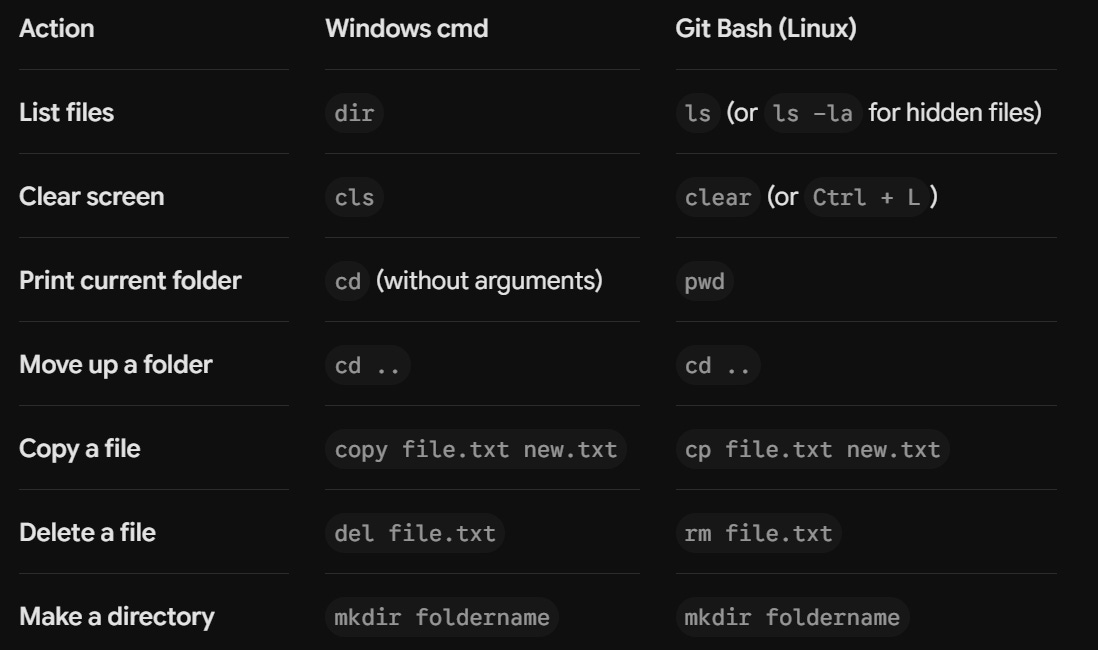
The Ultimate Git Bash Setup
Installing Git Bash (which comes bundled with Git for Windows) is straightforward, but the default settings aren’t always optimal. Here is how to configure it for the best experience.
1. The Installation Tweaks
When you download Git for Windows, the installer gives you a mountain of checkboxes. Pay attention to these three:
Default Editor: Change this from Vim to your preferred editor (like VS Code or Nano). If you leave it on Vim and accidentally trigger a merge conflict, you might get trapped.
Path Environment: Select “Git from the command line and also from 3rd-party software.” This ensures tools like Node.js and Python can easily interact with Git.
Line Endings: Choose “Checkout Windows-style, commit Unix-style line endings.” This prevents massive cross-platform formatting headaches if you collaborate with Mac or Linux users.
2. Integrate with Windows Terminal
Don’t use the standalone Git Bash window. Instead, download Windows Terminal from the Microsoft Store.
Open Windows Terminal settings.
Add a new profile for Git Bash.
Set the executable path to
C:\Program Files\Git\bin\bash.exe.Set it as your default profile.
Now you have Git Bash running inside a modern, tabbed, highly customizable terminal window.
3. Integrate with VS Code
You rarely want to leave your code editor to run terminal commands. To make Git Bash your default terminal inside VS Code:
Open VS Code and press
Ctrl + `to open the terminal.Click the dropdown arrow next to the
+icon in the terminal panel.Select “Select Default Profile”.
Choose Git Bash.
Pro-Tip: Creating Aliases
The real power of Bash is customization. If you find yourself typing long commands repeatedly (like the git log commands we looked at previously), you can create aliases.
You do this by creating or editing a file named .bashrc in your home directory (type cd ~ then nano .bashrc).
Add a line like this:
alias gl="git log --oneline"
Save the file, restart your terminal, and now typing just gl will run that entire log command.